
Teleprompter for Lives and Streaming: Engage Your Audience with Fluidity
Doing a live broadcast is like walking on a tightrope. You need to monitor chat, manage audio, interact with viewers, and, at the same time, not lose your train of thought. How many times have you seen a streamer get lost in ramblings and see the audience plummet in real time?
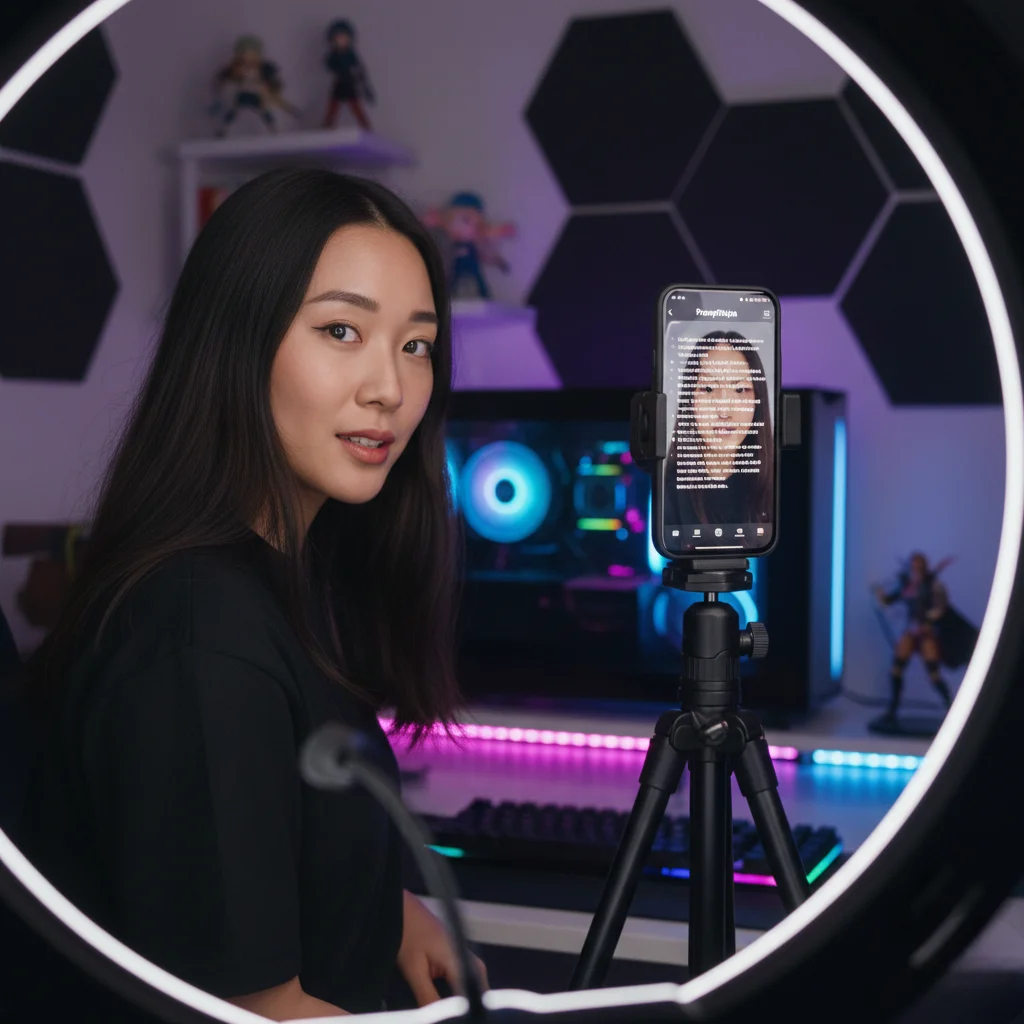
In this practical guide, we will show you how PromptNinja becomes your invisible copilot during lives on Twitch, YouTube, or Instagram. Learn how to set up a script or strategic topics that are visible only to you, allowing you to deliver high-value content and sponsorship announcements perfectly, without ever taking your focus off your community. Discover the ideal setup for OBS Studio and how to use the remote control via mobile to have total fluidity without stammering!
The Problem with Scriptless Lives
Have you ever watched a live stream where the host rambles for 10 minutes, stammers, and loses their train of thought? The viewership drops instantly. Having bullet points or a full script on screen ensures you deliver constant value, increasing retention.
The Challenge: How to read the script without taking your eyes off the camera and without showing the script on the OBS stream?
The Solution: Invisible Overlay with PromptNinja
PromptNinja allows you to place a transparent teleprompter window over your streaming software (OBS Studio, vMix, Streamlabs), but physically positioned on the screen right below your webcam.
Step-by-Step Live Setup
- Open PromptNinja in a Separate Window:
Don't use full screen. Resize the browser window to be narrow and transparent. - Position at the Top:
Drag this window to the top center of your monitor, just below the webcam. - Control via Mobile (The Trick):
Connect your phone as a remote control. This way, you can play/pause or change speed discreetly, with the phone out of frame, without using the mouse. - Don't Capture this Window in OBS:
In OBS, instead of using "Display Capture" (which would show the teleprompter), use "Window Capture" or "Game Capture" to capture only the game or slide you want to show. The teleprompter remains visible only to you!
Full Script vs. Bullet Points in Lives
Full Script
Ideal for the Introduction and the Conclusion/CTA. These are critical moments where you cannot make mistakes or forget to ask for likes/subs.
Bullet Points
Ideal for the Main Content. Put keywords in the teleprompter and scroll manually as you advance through topics. This maintains the natural feel of the live stream.